Feed
The Feed is the main home screen - where participants view, complete, and track their assigned cards. Cards are assigned either manually by coaches from the Portal or automatically via Journeys. See the Configuration Reference for feed layout and card display options.
Cards on the Feed are organised into three sections:
- Health Measure Cards - shown as individual cards
- Health Area Cards - grouped by health area
- Recurring Cards - grouped by time of day
- One-Off Cards - shown as individual cards
Fullscreen Cards
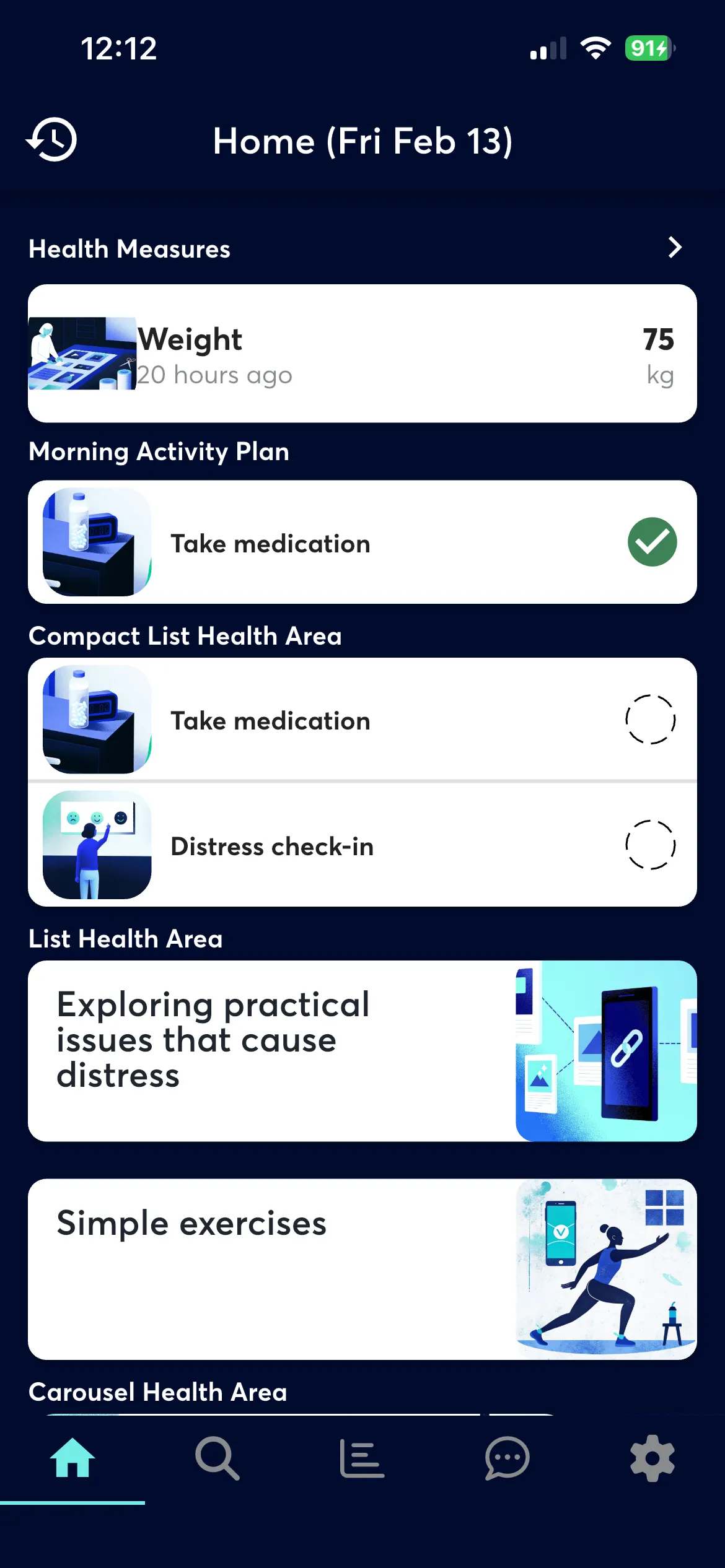
Fullscreen cards take priority over everything else. When an unanswered fullscreen card exists, it takes over the entire home screen, replacing the normal feed. The card's title and response controls are displayed in a full-page layout. Participants must respond before the regular feed becomes visible again. If multiple fullscreen cards are pending, they are shown one at a time in scheduled order.
Fullscreen cards are never shown in the regular feed list or in Feed History.
Health Measure Cards
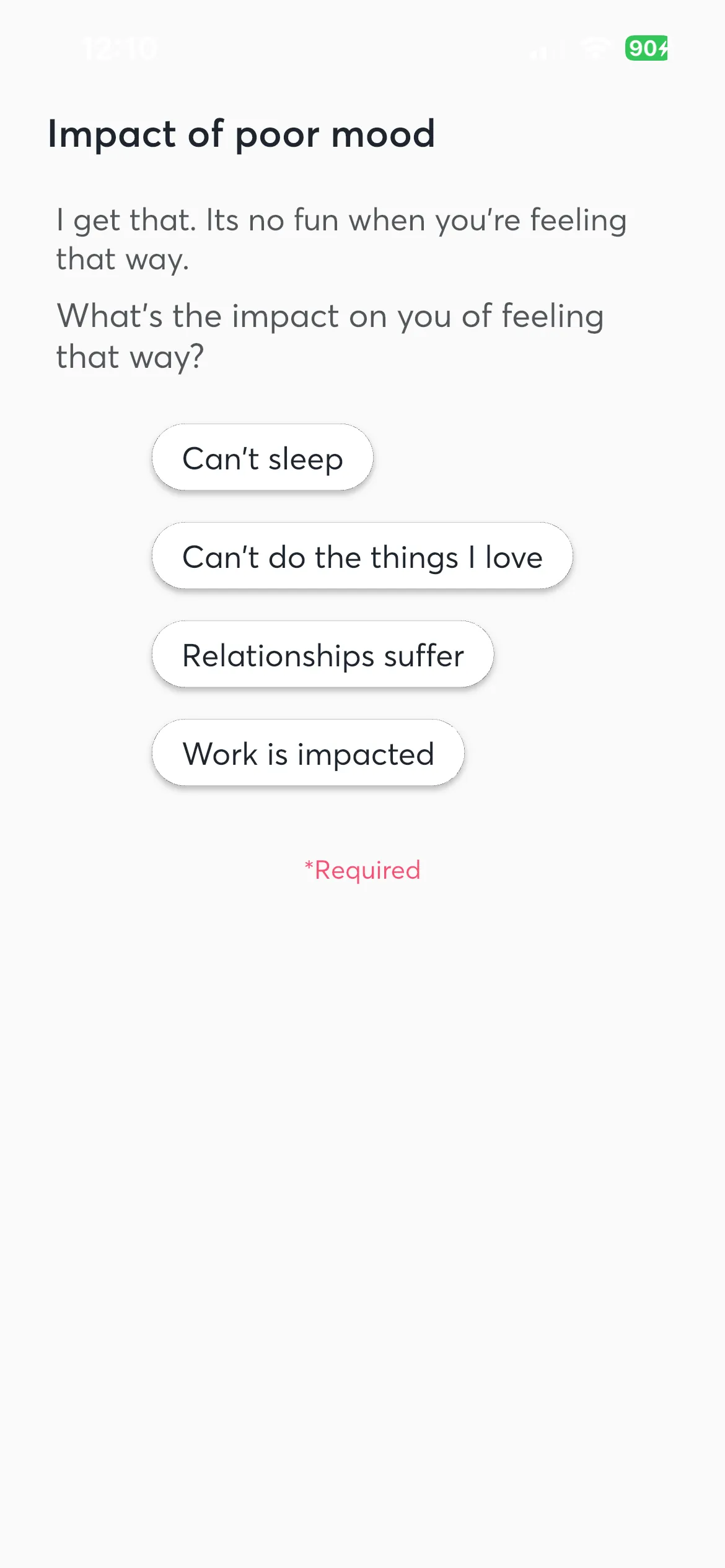
Health Measure cards appear in their own section on the Feed rather than as regular cards. The section displays a summary dashboard of tracked health metrics inside a single card, with a heading that links to the full Progress screen.
Each row shows an icon for the measure type, the measure name, and the most recent reported value. If a value has been recorded, the time since the last entry and the unit of measurement are shown beneath it. If no data has been recorded yet, a placeholder is displayed.
Tapping a row navigates to the Add Health Measure screen for that measure type, where participants can record a new reading. The section only appears if health measures are configured - otherwise it is hidden entirely.
Health Area Cards
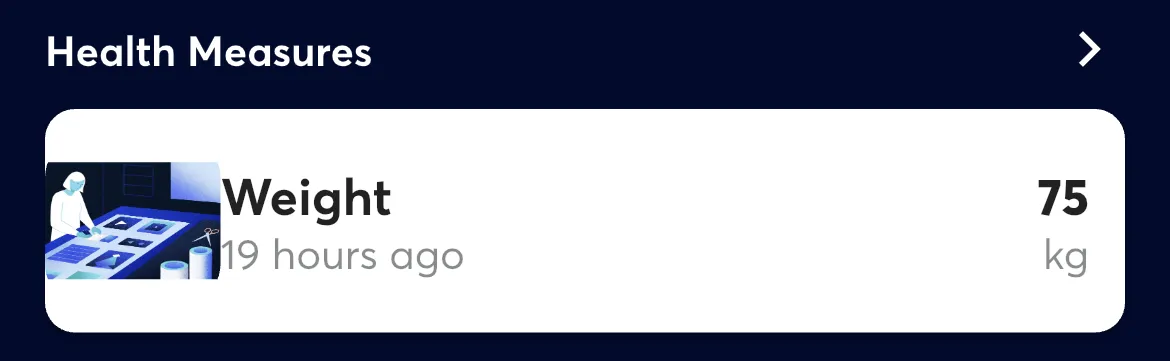
Cards assigned to a health area are grouped under headings showing the health area name, sorted by their configured display order. Within each health area, cards are sorted by the health area's configured sort field and direction.
Each health area can use one of three display styles:
Carousel
Cards scroll horizontally, each showing the card image, name, and description.
This is the default style.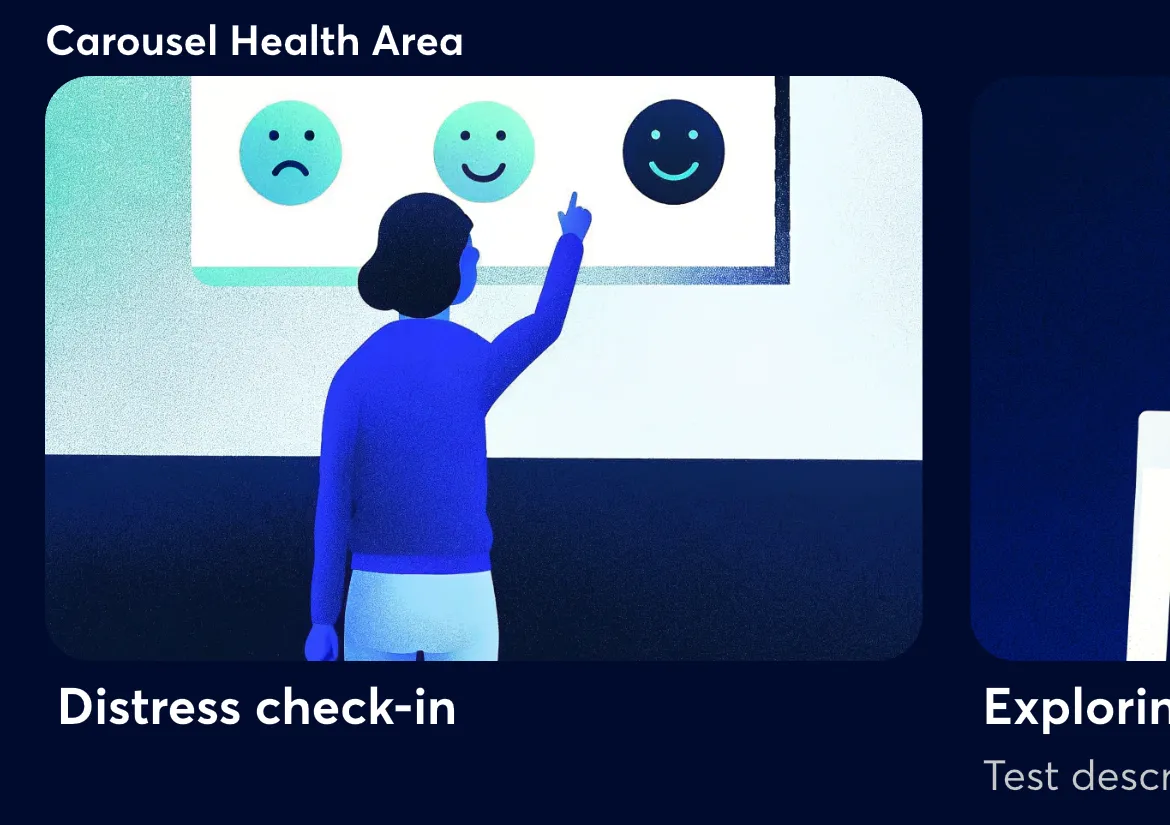
Compact List
All cards appear as rows inside a single card with thumbnail images, card names,
and completion indicators.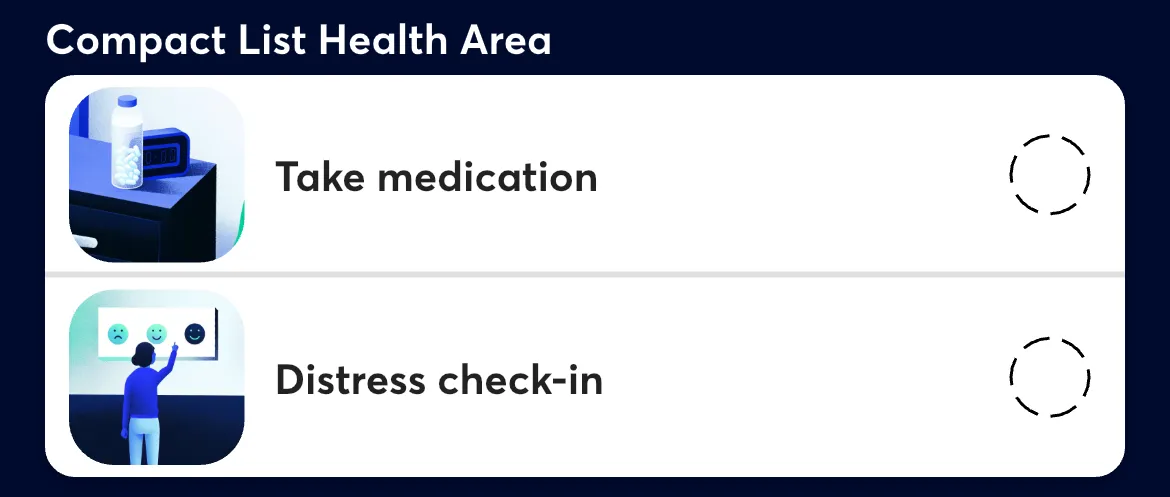
List
Cards appear as full-size individual cards stacked vertically.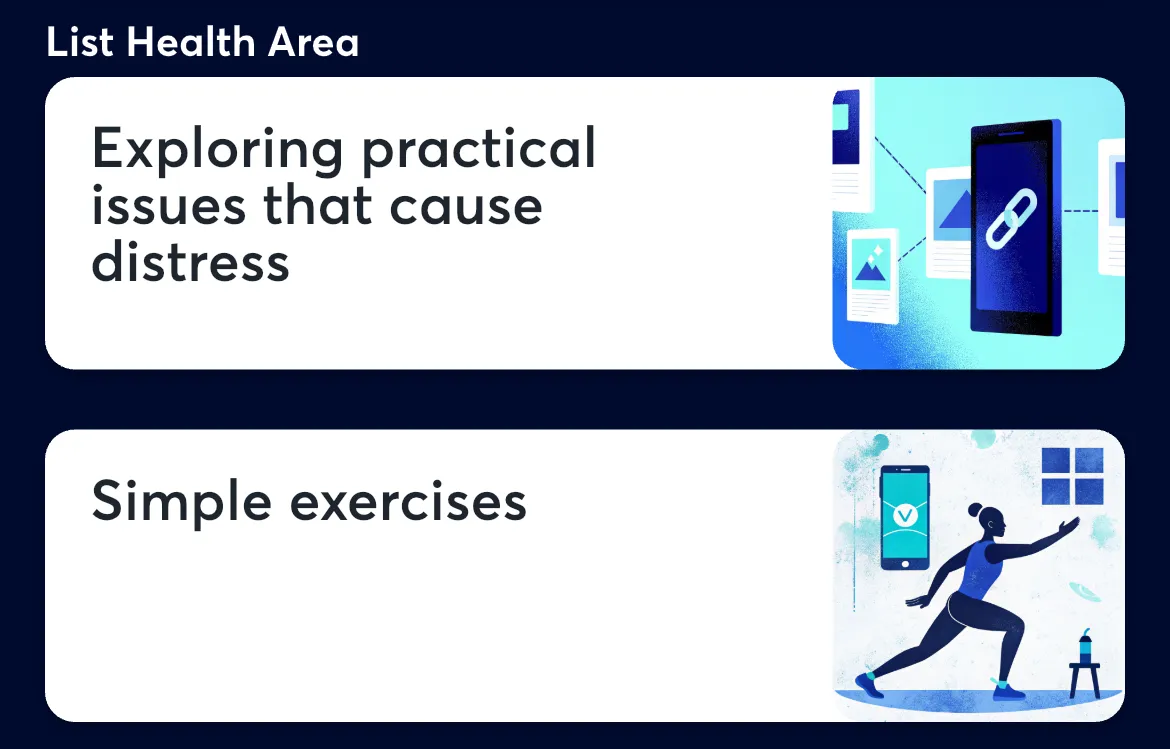
Recurring Cards
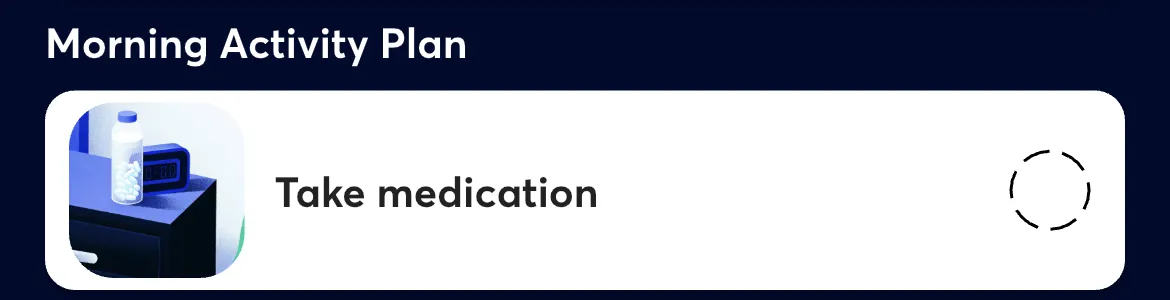
Recurring cards that are not assigned to a health area are grouped under time-of-day headings - Morning, Midday, Afternoon, Evening, and Night - displayed in chronological order. Each group appears as a compact list inside a single card showing a thumbnail image (if available), the card name, and a completion indicator.
Tapping a row opens the card for the participant to respond.
One-Off Cards
One-off cards that are not assigned to a health area appear as individual cards below the other sections, sorted with the most recently created first and incomplete cards before completed ones.
One-off cards use different layouts depending on their configuration:
- Standard - full-width header image, type label, card name, description, and response controls. The header image is hidden after completion.
- Compact - full-width header image with a response button overlaid on the image, with title and description below. Falls back to Standard if no image is set.
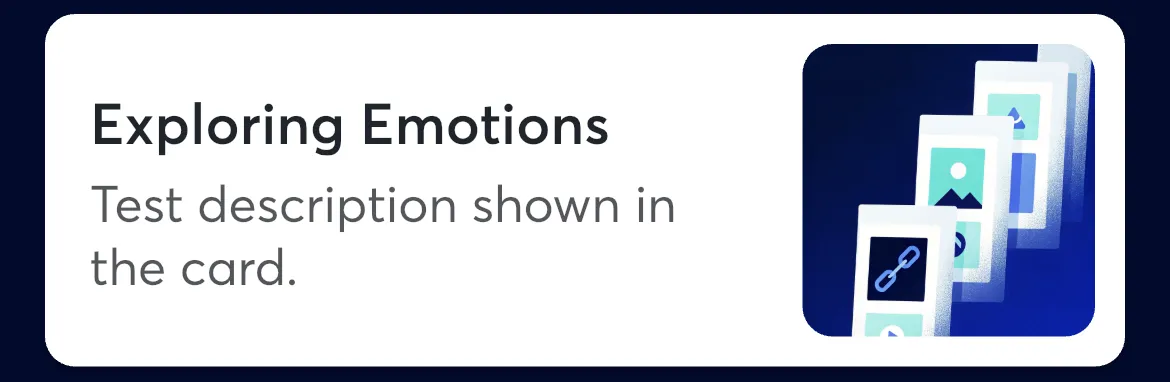
- Slim - side-by-side layout with text on the left and a small square image on the right. Completed cards show a checkmark instead of the description.
Once completed, Standard and Compact cards switch to a condensed view showing the card name, a check icon, and a summary of the response.
Dismissing and Undoing
If enabled, participants can swipe a card to the left to reveal a Dismiss button. Dismissed cards are hidden from the Feed but remain visible in Feed History.
Completed cards can also be swiped to reveal an Undo button to retract the response.
Persistent Cards
Some cards are marked as persistent. These remain visible on the Feed even after a participant has responded, allowing multiple responses over time.
External Link
If configured, an external link icon appears in the feed header. This can direct participants to external services such as appointment booking or a shop page.
Feed History
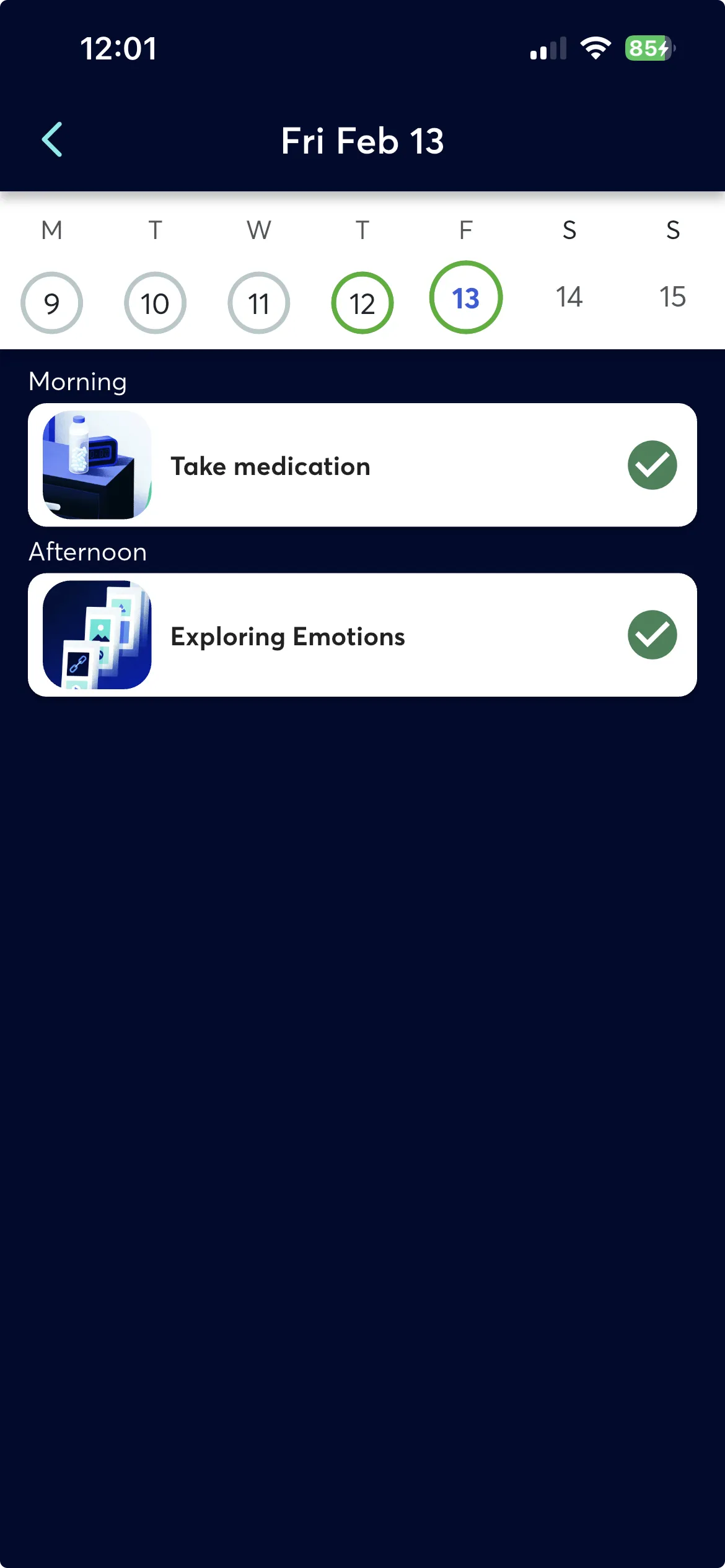
Feed History provides a calendar-based view of all cards across any date. Tap the clock icon in the top-left corner of the Feed to open it.
A week-strip calendar at the top can be expanded to a full month view by dragging down. Tap any date to view that day's cards, or swipe left and right to move between weeks.

Cards are grouped by time of day, just like recurring cards on the Feed. Each row shows a thumbnail image, the card name, and a completion indicator.
- Completed cards appear on the date they were completed
- Incomplete cards appear on every date between their scheduled date and expiration date (or today if no expiration is set)
- Recurring cards appear on the date they were scheduled
Dismissed cards appear faded out in Feed History with a badge showing the count of hidden cards. Tapping a hidden card lets participants toggle its visibility back on.
Participants can tap any card in Feed History to open it and submit or re-submit a response, even on past days.