Assets
Assets are reusable media files, such as images, videos, and audio clips, stored in a central library within the platform. By uploading a file once as an Asset, you can easily find and reuse it in multiple places like Cards, Journeys, Profile Pictures, or Group Logos. This ensures consistency and saves time.
Imagine you need tio reuse a 'Welcome' oboarding video.
You would upload the video file once to your Assets library and give it a name like 'Company Welcome Video'. Now, when building your Journeys or Cards, you can simply select this asset from your library to add it to your content. This is incredibly useful for managing brand consistency and saving time, as you never have to upload the same file twice.
Upload a New Asset
You can upload a variety of media files, including Images (e.g., .jpg, .webp), Videos (e.g., .mp4), and Audio files (e.g., .mp3). Please note that there is a 10MB file size limit for each upload.
- Navigate to the side menu and select More → Assets.
- Click the button to upload a new file, give it a clear name (e.g., 'Sleep Podcast EP 1'), and add any relevant tags.
Use Existing Assets
Once uploaded, assets become available in your media library throughout the platform. When editing an item like a Card or updating a Group Logo, you can choose to select an existing asset from your media library instead of uploading a new file.
Image Guidelines
- Use JPG for photos
- Use PNG for logos, graphics, or anything needing transparency
- Keep file sizes under 500 KB each
- Provide sharp images
- Use consistent lighting and quality across all images
- Upload huge files (over 2 MB) - they'll slow down the app
- Use blurry or pixelated images
- Mix portrait and landscape orientations where squares are expected
- Correct dimensions for the use type
- File size under 500 KB
- JPG for photos, PNG for graphics/logos
- Image is clear and not pixelated
- Looks good on mobile screen
- Consistent style with other images in the app
| Cheat Sheet | Recommended size (pixels) | Recommended aspect ratio |
|---|---|---|
| Standard cards | 800 × 150 | 5:1 |
| Square cards | 600 × 600 | 1:1 |
| Slim cards | 200 x 200 | 1:1 |
| Journey images (list view) | 400 x 300 | 4:3 |
| Journey images (detail view) | 1200 x 900 | 4:3 |
| Profile pictures | 300 x 300 | 1:1 |
| Content images | 1000 x 750 | 4:3 |
Cards
Standard cards
- Best size: 800 × 150 pixels (wide rectangle)
- Aspect ratio: About 5:1 (much wider than tall)
Square cards
- Best size: 600 × 600 pixels (perfect square)
- Aspect ratio: 1:1 (equal width and height)
Slim cards
- Best size: 200 × 200 pixels (square)
- Aspect ratio: 1:1
Horizontal scrolling cards
- 2:1 in scale (2 width: 1 height).
The images vary in size and scale depending upon:
- The length of text in the card heading and description
- Device text size setting
We recommend images should be considered at least at 4.5:1, knowing that it may scale to 2.4:1. Its important to note the scaling occurs from the center of the image.
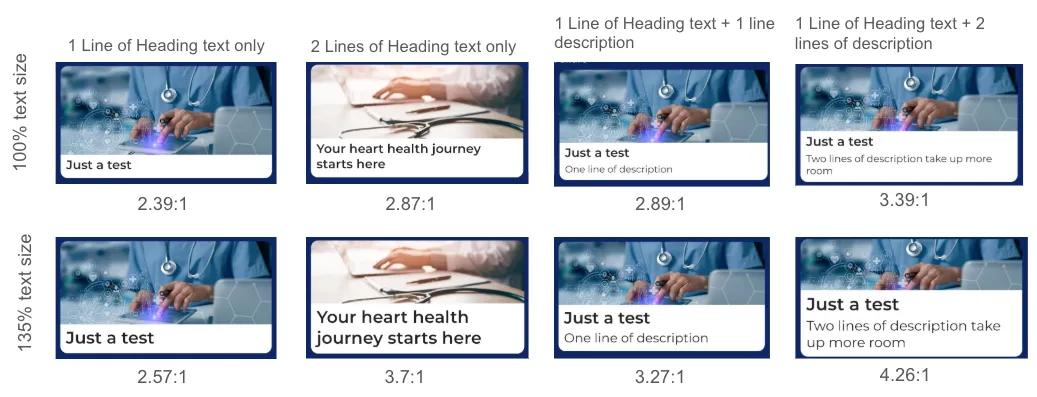
Varying image scales combined with text sizes

2.5:1 and 4:1 on a 16:9 image
Journeys
Small thumbnail (in list)
- Best size: 400 × 300 pixels
- Aspect ratio: 4:3 (slightly wider than tall)
Large image (detail view)
- Best size: 1200 × 900 pixels
- Aspect ratio: 4:3 (same proportions, higher resolution)
Participants and Coaches
- Best size: 300 × 300 pixels (square)
- Aspect ratio: 1:1
- Note: The app will crop these into circles automatically
Contents and Content Types
Images inside articles or educational content.
- Best size: 1000 × 750 pixels (flexible)
- Aspect ratio: Flexible, but 4:3 works well